
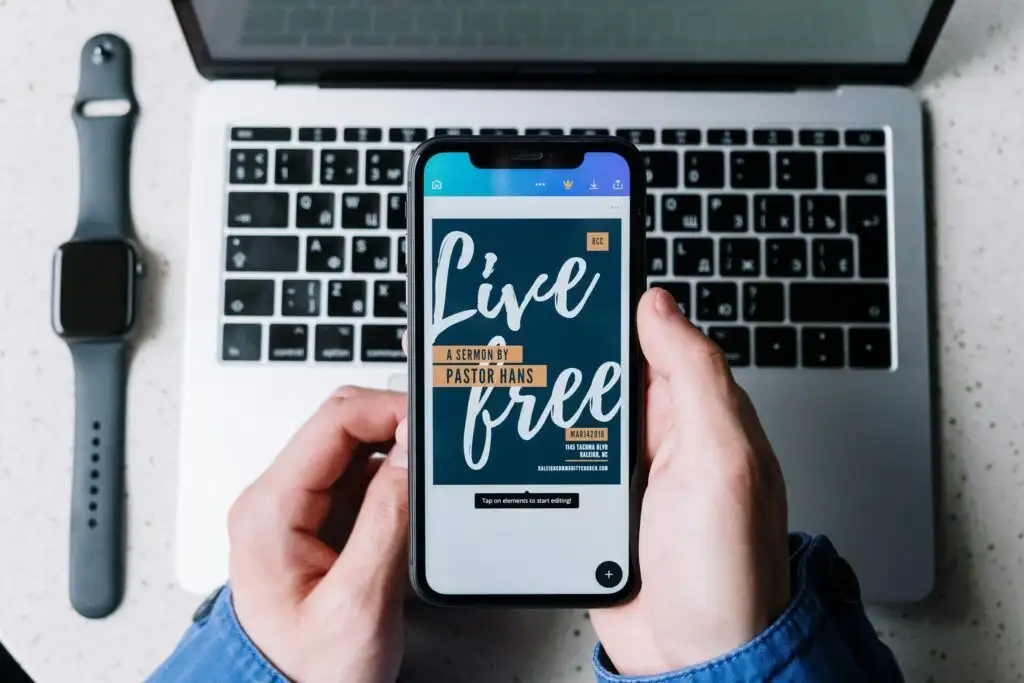
In today’s visual world, the ability to create eye-catching graphics is a superpower. If you want to produce professional-grade visuals without the steep learning curve of complex software, learning how to use Canva for beginners is the perfect place to start.
Canva is a versatile, user-friendly tool that empowers anyone—from students to small business owners—to design everything from viral Instagram reels to polished resumes. This guide will walk you through the entire process from scratch.
What is Canva?
Canva is an all-in-one graphic design platform that utilizes a “drag-and-drop” interface. Instead of drawing every line manually, you use pre-built elements and AI-driven tools to assemble your vision.
Who Benefits Most from Canva?
- Content Creators: For thumbnails and social media posts.
- Small Businesses: For branding, flyers, and menus.
- Students & Educators: For engaging presentations and reports.
- Job Seekers: For modern, professional resumes.
Why Should You Learn Canva?
| Benefit | Why It Matters |
|---|---|
| Zero Experience Needed | Intuitive design for non-designers. |
| Massive Free Library | Thousands of free photos, fonts, and icons. |
| Cross-Platform | Edit on your phone, tablet, or computer. |
| AI Integration | Use “Magic Studio” to generate images and text. |
Learning how to use Canva for beginners saves you the cost of hiring a pro while giving you total creative control.
Step 1: Set Up Your Creative Workspace
To begin, you need an account to save your progress.
- Sign Up: Go to Canva.com or download the mobile app.
- Choose a Method: Register via Google, Facebook, or Email.
- Select Your Tier: Start with the Free version. You can always try the Pro trial later for advanced features.

Step 2: Navigate the Dashboard
The dashboard is your “command center.” Understanding its layout is key when learning how to use Canva for beginners.
- Search Bar: Your best friend. Type “YouTube Thumbnail” or “Wedding Invite” to find specific templates.
- Sidebar Menu: Access your past “Projects,” “Starred” items, and “Brand Kit.”
- Create a Design: A button in the top right corner that lets you input custom dimensions.
Step 3: Choose a Template (The Shortcut to Success)
Don’t start with a blank white square. Canva’s library contains millions of templates.
- Browse Categories: Social Media, Presentations, Video, or Marketing.
- Filter: Search by style (e.g., “Minimalist,” “Bold,” or “Professional”).
- Select: Click a template to open the editor.
Step 4: Master the Design Tools
Once your template is open, you’ll see the Editor Toolbar on the left. This is where the magic happens.
| Tool | Functionality |
|---|---|
| Elements | Find shapes, stickers, graphics, and charts. |
| Uploads | Add your own personal photos or videos. |
| Text | Add headings, subheadings, or pre-designed font pairs. |
| Draw | Use digital pens for freehand designs. |
Step 5: Customizing Your Design
Learning how to use Canva for beginners is mostly about clicking and dragging.
- Change Colors: Click an object, then click the color box in the top toolbar.
- Edit Text: Double-click any text box to type your own words.
- Replace Images: Drag a photo from the “Photos” tab or your “Uploads” and drop it right on top of an existing image to replace it.
Pro Tip: Use the Position button to move layers forward or backward, ensuring your text stays on top of your shapes.
Step 6: Export and Download
Once you are happy with your design, you need to save it in the right format.
- PNG: Best for high-quality social media images.
- JPG: Best for smaller file sizes (websites).
- PDF Print: Essential for physical flyers or business cards.
- MP4: Use this for any design with animation or music.
Common Beginner Mistakes to Avoid - Font Overload: Stick to 2 or 3 fonts maximum to keep it readable.
- Low Contrast: Ensure dark text is on a light background (and vice versa).
- Clutter: Don’t feel the need to fill every “white space.” Let your design breathe.
1. Is Canva really free?
Yes! The free version is incredibly generous. Canva Pro is only necessary if you want one-click resizing, background removal, or premium stock assets.
2. Can I use Canva for my business logo?
Absolutely. Many startups use Canva to build their initial brand identity.
Conclusion
Mastering how to use Canva for beginners is a gateway to better digital storytelling. Whether you are building a personal brand or helping a local business, these steps provide the foundation you need to create stunning visuals in minutes.