
Creating a website today is easier than ever. You don’t need coding skills or technical knowledge. If you want to make website in WordPress, this step-by-step guide will help you build a professional site from scratch.
- Step 1: Understand What WordPress Is
- Step 2: Choose a Domain Name and Hosting
- Step 3: Install WordPress
- Step 4: Log in to Your Dashboard
- Step 5: Choose and Install a Theme
- Step 6: Install Important Plugins
- Step 7: Create Important Pages
- Step 8: Customize Website Design
- Step 9: Write and Publish Content
- Step 10: Optimize for SEO and Speed
- Estimated Cost to Build a Website (2025)
- Final Thoughts
Step 1: Understand What WordPress Is
WordPress is a free content management system (CMS) that lets you create websites using themes and plugins instead of complex code.
Why choose WordPress?
According to 2025 web statistics, WordPress now powers over 43.2% of all websites on the internet. It is the global standard because it is flexible, beginner-friendly, and SEO-ready.
If your goal is to make website in WordPress, you are choosing the platform used by major brands like The New York Times, Sony, and Time Magazine.
Step 2: Choose a Domain Name and Hosting
Step 2: Choose a Domain Name and Hosting
To make website in WordPress, you need two essential things:
- Domain name – Your website’s address (e.g., mysite.com).
- Web hosting – The engine room where your website files live.
Best Hosting Providers for 2025
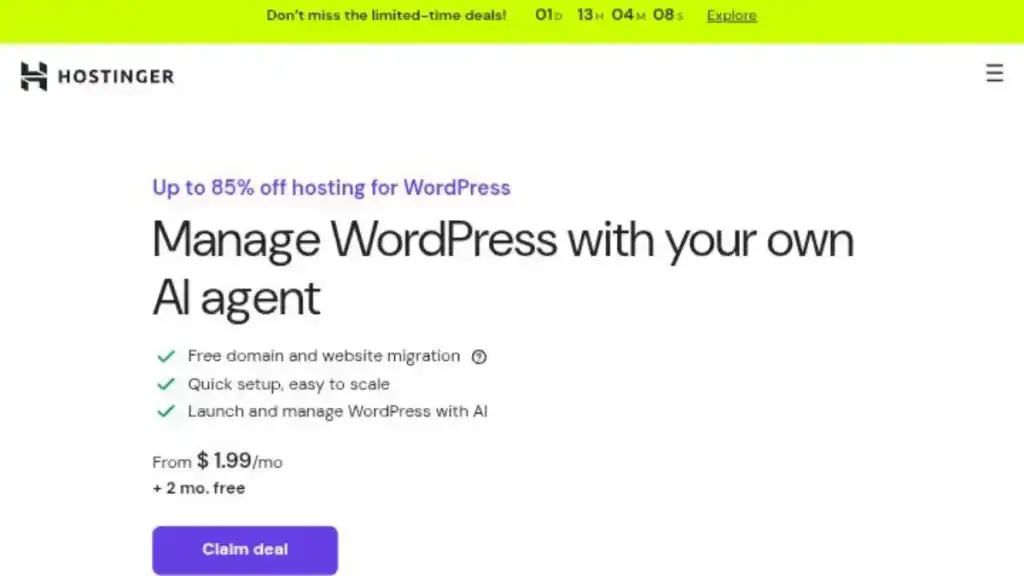
Choosing the right host is critical for speed and security. Below is a comparison of the top hosting providers recommended for beginners this year.
| Provider | Best For | Approx. Price/Mo* | Key Feature |
|---|---|---|---|
| Hostinger | Best Value | ~$2.99 | Great speed at a low price; very beginner-friendly. |
| Bluehost | Beginners | ~$2.95 | Official WordPress recommended; easiest 1-click setup. |
| SiteGround | Performance | ~$3.99 | Top-tier support and premium speed features. |
*> Prices vary based on promotions and renewal terms.
Most hosting companies offer a free domain name for the first year and a “1-click WordPress installation,” which makes it very easy to make website in WordPress.
Step 3: Install WordPress
Once you have purchased your hosting plan, the installation process is automated.
- Log in to your hosting dashboard (Bluehost, Hostinger, or SiteGround).
- Look for the “Auto-Installer” or “Install WordPress” button.
- Enter your site details: Site Name, Admin Username, and Password.
- Click Finish.
Within minutes, your WordPress website will be live. This is the core step to make website in WordPress successfully.
Step 4: Log in to Your Dashboard
To manage your site, you need to access the administrative area.
Go to: yourwebsite.com/wp-admin
The Dashboard is your control center:
- Posts: Where you write blog articles.
- Pages: Where you create static content (Home, About, Contact).
- Appearance: Where you change themes and menus.
- Plugins: Where you add new features.
Learning this dashboard helps you fully control how you make website in WordPress.
Step 5: Choose and Install a Theme
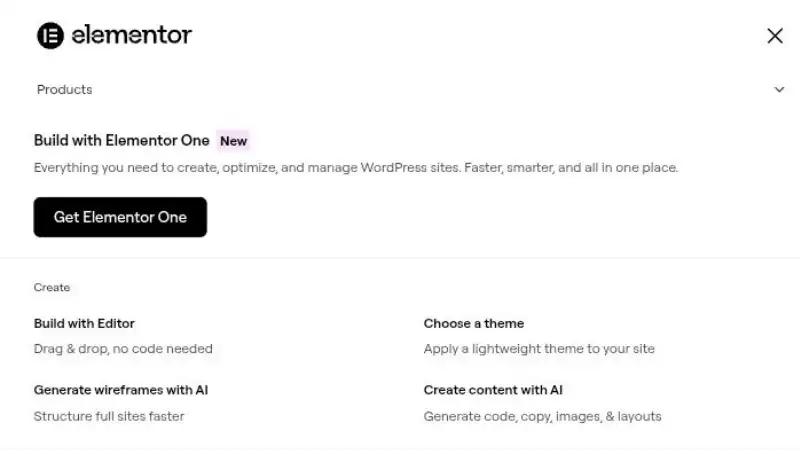
A theme controls your website’s visual design. In 2025, you can choose between “Classic Themes” and modern “Block Themes.”
Top Recommended Free Themes:
- Astra: Fast, lightweight, and works with all page builders.
- Generate Press: Stability and speed-focused.
- OceanWP: Great for e-commerce sites.
- Hello Elementor: A blank canvas perfect for design customization.
How to Install: - Go to Appearance → Themes.
- Click Add New.
- Search for a theme (e.g., “Astra”).
- Click Install and then Activate.
A good theme helps you make website in WordPress look professional on both mobile and desktop.
Step 6: Install Important Plugins
Plugins are like apps for your phone—they add specific features to your site. To make website in WordPress that is secure and fast, you need the right set of tools.
Essential Plugins Checklist (2025)
| Category | Recommended Plugin | Purpose |
|---|---|---|
| SEO | Rank Math or Yoast SEO | Helps your site rank higher on Google. |
| Security | Wordfence | Protects against hackers and malware. |
| Backups | UpdraftPlus | Saves a copy of your site in case it breaks. |
| Speed | WP Rocket or LiteSpeed | Makes your website load faster. |
| Design | Elementor or Spectra | Drag-and-drop builder for custom layouts. |
| Forms | WPForms | Creates contact forms easily. |
To install: Go to Plugins → Add New, search for the plugin, and click Activate.
Rank Math SEO is a powerful WordPress SEO plugin that helps you optimize content, improve search rankings, and manage on-page SEO easily with smart automation and clear suggestions.
Step 7: Create Important Pages
Every professional site needs a standard structure. Go to Pages → Add New to create:
- Home: The first page visitors see.
- About: Who you are and what you do.
- Contact: A form or email address for visitors to reach you.
- Privacy Policy: Essential for legal compliance.
This step completes the basic structure when you make website in WordPress.
Step 8: Customize Website Design
Now, bring your brand to life. Using the Customizer (Appearance → Customize) or a page builder like Elementor, you can:
- Upload your Logo: Make your brand visible.
- Change Colors: Match your brand identity.
- Set Menus: Organize your navigation links (Appearance → Menus).
- Adjust Fonts: Ensure readability.
This is where your website starts looking unique while you make website in WordPress.
Step 9: Write and Publish Content
Content is the heart of your website. Without high-quality content, even a beautiful site won’t succeed.
How to add a post:
- Go to Posts → Add New.
- Write a catchy title.
- Write helpful, original content.
- Use your main keyword naturally within the text.
- Add images and headings (H1, H2, H3) to break up text.
High-quality content helps your site rank on Google when you make website in WordPress.
Step 10: Optimize for SEO and Speed
To ensure people can find your site, you must optimize it.
- SEO (Search Engine Optimization): Use Rank Math to write custom “Meta Titles” and “Descriptions” for every page.
- Speed: Use a caching plugin and ensure your images are compressed (not too large in file size).
- Permalinks: Go to Settings → Permalinks and choose “Post name.” This makes your URLs look clean (e.g., site.com/my-post instead of site.com/?p=123).
SEO optimization is very important if you want long-term success after you make website in WordPress.
Estimated Cost to Build a Website (2025)
Many beginners ask how much it costs to make website in WordPress. Here is a realistic breakdown for a starter site:
Many beginners ask how much it costs to make website in WordPress. Here is a realistic breakdown for a starter site:
| Item | Estimated Cost (Year 1) | Notes |
|---|---|---|
| Domain Name | $10 – $15 / year | Often free for the first year with hosting. |
| Hosting | $35 – $100 / year | Depends on the provider you choose. |
| Theme | Free – $60 | Free themes are excellent for beginners. |
| Plugins | Free – $100 | Most essential plugins have free versions. |
| TOTAL | ~$50 – $200 | A very affordable way to start a business. |
Final Thoughts
Anyone can make website in WordPress by following the right steps. From choosing hosting to publishing content, WordPress gives you full control without coding. If you stay consistent with quality content and SEO, your WordPress website can grow into a strong online brand.